
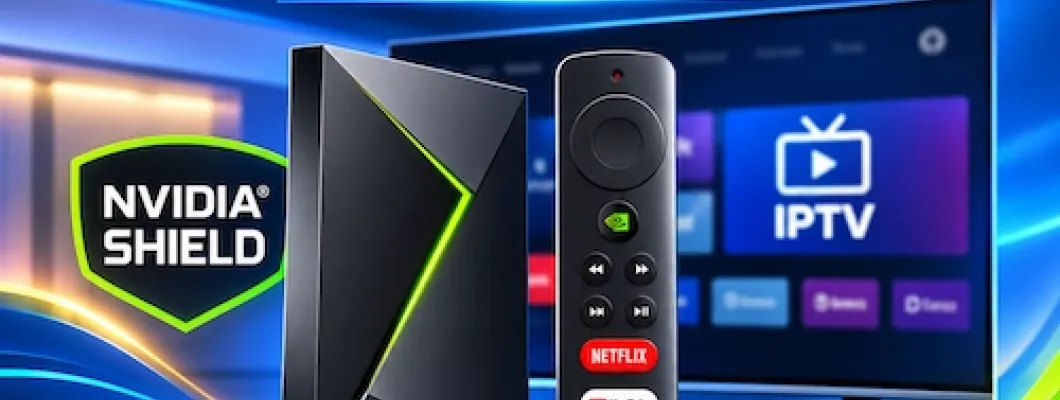
The NVIDIA Shield TV and NVIDIA Shield TV Pro remain the undisputed flagship hardware platforms for high-performance IPTV streaming in 2026. Powered by the NVIDIA Tegra X1+ processor, hardware-level MPEG-TS/HEVC decoding, gigabit Ethernet connectivity, and real-time AI-enhanced 4K upscaling, the Shield delivers broadcast-grade smoothness that standard budget streaming sticks simply cannot replicate.
Because BossTV provides pure, high-bandwidth IPTV server subscriptions (Xtream Codes API and M3U playlists) without selling proprietary locked hardware, you have complete freedom to unlock your NVIDIA Shield’s raw graphical horsepower. In this comprehensive technical guide, we break down the top 5 IPTV players for NVIDIA Shield—including step-by-step configuration for TiviMate, Sparkle TV, iMPlayer, OTT Navigator, and XCIPTV—alongside Shield-exclusive tuning for stutter-free 4K sports and instant channel switching.
Table of Contents
- Why NVIDIA Shield TV is the Ultimate IPTV Streaming Box
- Prerequisites: What You Need Before Setting Up
- 1. TiviMate IPTV Player Setup & Configuration
- 2. Sparkle TV IPTV Player Setup & Configuration
- 3. iMPlayer IPTV Player Setup & Configuration
- 4. OTT Navigator IPTV Setup & Configuration
- 5. XCIPTV Player Setup & Configuration
- Comparison: Top 5 NVIDIA Shield IPTV Players
- NVIDIA Shield Hardware Optimization & Anti-Buffering Settings
- Setting Up USB PVR & External Storage on Shield TV Pro
- Frequently Asked Questions (FAQs)
Why NVIDIA Shield TV is the Ultimate IPTV Streaming Box
While entry-level HDMI dongles can handle standard 1080p web video, live IPTV streaming places far heavier demands on hardware. A live IPTV broadcast is delivered as a real-time MPEG-TS transport stream with dynamic audio codecs, unbuffered live EPG (Electronic Program Guide) grids containing tens of thousands of entries, and variable bitrates up to 25+ Mbps for uncompressed 4K sports.
The NVIDIA Shield TV stands in a league of its own for four specific technical reasons:
- Tegra X1+ AI-Enhanced Upscaling: The 256-core GPU uses a trained neural network to upscale 720p and 1080p 30/60 FPS live sports streams in real-time, delivering near-native 4K sharpness to your Ultra HD television without artificial edge ringing.
- True Gigabit Ethernet (1000 Mbps): Unlike typical streaming sticks limited to 100 Mbps micro-USB adapters, the Shield Pro features native Gigabit RJ-45 LAN, bypassing residential 5 GHz Wi-Fi interference completely.
- Auto Frame Rate (AFR) Matching: The Shield’s graphics pipeline allows top IPTV players to dynamically switch your TV’s refresh rate between 24 Hz (movies), 50 Hz (European sports and international feeds), and 60 Hz (North American NHL, NFL, and NBA broadcasts), eliminating motion judder and micro-stutter.
- Dolby Audio & Passthrough: Hardware-level bitstream passthrough for Dolby Atmos, Dolby Digital Plus, and DTS-HD to external AV receivers or soundbars via high-bandwidth HDMI 2.0b specifications.
Prerequisites: What You Need Before Setting Up
Before downloading your player of choice from the official Google Play Store on Android TV, ensure you have gathered your core streaming credentials:
- NVIDIA Shield TV or Pro: Running Android TV / Shield Experience 9.0 or newer. Connect via hardwired Cat6 Ethernet whenever possible.
- Active BossTV Subscription: High-bandwidth server credentials from premium lineups such as Titan IPTV, Strong 8K IPTV, or Trex IPTV.
- Xtream Codes Login Details: Your Server URL (e.g.,
http://domain-name.xyz:8080), Username, and Password. (Xtream Codes API is faster and more reliable than raw M3U text files because it syncs EPG and VOD categories automatically). - Google Account: Logged into the Google Play Store on your Shield TV to install official applications.
1. TiviMate IPTV Player Setup & Configuration
Widely regarded by home theater enthusiasts as the single best IPTV application for Android TV, TiviMate is purpose-built for the big screen. It replicates the premium feel of a traditional satellite or cable receiver with smooth channel flipping, picture-in-picture, multi-view (up to 9 simultaneous screens on the Shield Pro), and integrated PVR recording.
Recommended TiviMate Settings for NVIDIA Shield:
- Auto Frame Rate (AFR): Navigate to Settings → Playback → Auto Frame Rate (AFR) and switch it to ON. This allows the Shield to dynamically match your TV’s refresh rate to the stream (e.g., 50 Hz vs. 60 Hz).
- Buffer Size: Navigate to Settings → Playback → Buffer Size and set to Normal (or Large if your home broadband experiences occasional micro-spikes).
- Audio Passthrough: In Settings → Playback → Audio, toggle Audio Passthrough ON if your Shield is connected directly to a Dolby Atmos/DTS AV receiver.
2. Sparkle TV IPTV Player Setup & Configuration
Sparkle TV has rapidly surged in popularity among Android TV power users. Built from the ground up to follow modern Google Leanback design guidelines, Sparkle TV feels like a native system extension on the NVIDIA Shield. It features DVR scheduling, timeshift (pause/rewind live TV), NAS recording integration, and customizable home-screen channel rows.
Why Sparkle TV Shines on Shield:
Sparkle TV provides seamless integration with the Android TV "Play Next" row on the Shield home screen. If you pair it with high-retention servers like Smart 4K IPTV or Trex IPTV, you can pause live sports, rewind instantly, and schedule automatic recordings of your favorite hockey or football matchups while you are away.
3. iMPlayer IPTV Player Setup & Configuration
iMPlayer is an advanced IPTV media player that mirrors the look and feel of high-end dedicated Formuler/Dreamlink set-top boxes. Its standout features include cloud-managed remote configuration, Stalker MAC portal support alongside Xtream Codes, and multi-screen layout customization with independent audio switching.
Pro Tip for Multi-Screen: With the NVIDIA Shield TV Pro’s 3 GB of RAM, iMPlayer allows you to watch up to 4 live sports matches simultaneously in a 2x2 grid without experiencing dropped frames, provided your BossTV package includes multi-connection capacity.
4. OTT Navigator IPTV Setup & Configuration
OTT Navigator is the most granular, feature-dense IPTV player available for the Android TV ecosystem. If you love fine-tuning codec rendering pipelines, tweaking user agent strings, setting up custom channel numberings, and switching between media engines like ExoPlayer and VLC media player architecture, OTT Navigator is unmatched.
OTT Navigator also includes a powerful "Studio Mode" allowing multi-window playback and intelligent automatic catch-up detection for channels that support server-side playback archiving.
5. XCIPTV Player Setup & Configuration
For users who want a clean, simple, and straightforward interface without deep technical settings menus, XCIPTV Player (by OTTRUN) is a proven favorite. It separates Live TV, Movies (VOD), and TV Series into prominent home-screen tiles with large, legible typography and dual built-in media players (ExoPlayer and VLC).
Comparison: Top 5 NVIDIA Shield IPTV Players
Every player has distinct strengths depending on whether you prioritize cable-like navigation, automated cloud recording, or multi-screen sports tracking:
| Player | Interface Style | EPG Performance | Shield AI Upscale | Multi-View | PVR / Recording |
|---|---|---|---|---|---|
| TiviMate | Classic Cable/Satellite TV Guide | Lightning Fast | Full Support (60 FPS) | Up to 9 screens | USB & SMB Network PVR |
| Sparkle TV | Modern Google Leanback UI | Very Fast | Full Support | Dual screen PiP | Timeshift & Advanced DVR |
| iMPlayer | Formuler/Set-Top Box Style | Fast | Full Support | Up to 4 screens | Local USB Storage |
| OTT Navigator | Highly Configurable / Modular | Fast (Cached) | Full Support | Studio Multi-View | Archive & Catch-up Priority |
| XCIPTV Player | Tile Dashboard (Live / VOD) | Moderate | Full Support | Single screen standard | Basic Recording |
NVIDIA Shield Hardware Optimization & Anti-Buffering Settings
To ensure 60 FPS live sports streams and high-bitrate 4K streams run without frame drops, optimize your NVIDIA Shield operating system with these technical adjustments verified through NVIDIA official Shield system documentation:
1. Configure AI-Enhanced Upscaling for Live IPTV
Most live TV channels broadcast at 720p or 1080p. The Shield’s Tegra X1+ AI processor upscales these feeds in real time to match 4K TV panels with exceptional clarity:
- Go to Shield Settings (Gear) → AI Upscaling.
- Select AI-Enhanced.
- Set Detail Enhancement to Medium (High can introduce unnecessary sharpening grain on fast-motion sports).
- Enable Apply to 60Hz content (requires Shield Experience 9.0+).
2. Match Content Frame Rate (Eliminate Motion Jitter)
North American sports (NHL, NFL, NBA) are broadcast at 60 Hz, European soccer is broadcast at 50 Hz, and movies are shot at 24 Hz. When a 50 Hz stream is forced onto a 60 Hz display without frame matching, a micro-stutter occurs every second:
- Go to Shield Settings → Remotes & Accessories → Customize Menu Button.
- Set the Quick Action or Double-Press action to Match Frame Rate (Beta).
- Alternatively, enable Auto Frame Rate (AFR) directly inside TiviMate or Sparkle TV settings as detailed in the setup sections above.
3. Disable IPv6 on Canadian Residential ISP Routers (If Buffering Occurs)
Some Canadian fiber and cable routers (such as Bell Giga Hub or Rogers Ignite gateways) have incomplete IPv6 routing tables that cause random 10-second stream stalls when negotiating IPTV CDN nodes:
- Navigate to Shield Settings → Network & Internet.
- Scroll down and toggle IPv6 to OFF.
- Your Shield will prioritize robust IPv4 routing across Canadian backbones, delivering stable packet delivery.
Setting Up USB PVR & External Storage on Shield TV Pro
One of the biggest advantages of the NVIDIA Shield TV Pro over budget dongles is the presence of two full-sized USB 3.0 ports. This enables you to attach an external solid-state drive (SSD) or high-capacity flash drive and turn your Shield into a full-featured digital video recorder (DVR).
How to Configure External PVR Storage:
- Plug a fast USB 3.0 flash drive or external SSD (formatted as exFAT or NTFS) into either USB port on the back of the Shield Pro.
- When Android TV prompts you, choose Removable Storage (do not format as internal device storage if you wish to easily transfer recordings to your PC).
- Open your IPTV player (e.g., TiviMate or Sparkle TV).
- Go to Settings → Other → Recordings → Recording Folder.
- Select Select Folder, navigate to your USB drive, grant Android media permissions, and click Use this folder.
- You can now highlight any future program in the EPG grid, press and hold the remote center button, and select Record or Schedule Recording.
Note: Recording a live channel while watching another channel requires an active multi-connection subscription from BossTV so the server permits two simultaneous stream feeds.
Frequently Asked Questions (FAQs)
Which is better for IPTV: NVIDIA Shield TV (Tube) or NVIDIA Shield TV Pro?
The NVIDIA Shield TV Pro is noticeably superior for IPTV. The Pro model features 3 GB of RAM (compared to 2 GB on the cylindrical Tube model), 64-bit Android OS architecture, two USB 3.0 ports for PVR storage, and enhanced thermal cooling. The extra gigabyte of RAM prevents out-of-memory crashes when loading massive EPG databases or streaming 4-channel multi-view simultaneously.
Does BossTV sell the NVIDIA Shield TV box?
No. BossTV does not sell any streaming hardware, set-top boxes, or dongles. BossTV specializes purely in delivering high-speed, multi-server IPTV subscriptions. You can purchase your NVIDIA Shield through standard consumer electronics retailers and connect it to your BossTV subscription using any player listed in this guide.
Can I record live IPTV streams to an external hard drive on NVIDIA Shield?
Yes. Both TiviMate Premium and Sparkle TV Plus support scheduled and one-touch PVR recording to external USB storage or network-attached storage (SMB/NAS). You will need a multi-connection subscription if you plan to record one channel while watching a different one.
Does NVIDIA Shield’s AI Upscaling work on live IPTV streams?
Yes. Unlike older TV upscalers, the Tegra X1+ AI processor supports real-time enhancement up to 60 FPS. When streaming 720p or 1080p live sports feeds inside TiviMate, Sparkle TV, or OTT Navigator, the Shield enhances edge definition and clarity to look virtually indistinguishable from native 4K.
Why is my IPTV buffering on NVIDIA Shield despite 500 Mbps internet?
Local internet speed test numbers only reflect bandwidth to your ISP’s local speed test server. Live IPTV buffering is typically caused by: (1) 5 GHz Wi-Fi interference (resolve by connecting via Cat6 Ethernet), (2) router IPv6 handshake stalls (disable IPv6 in Shield Network settings), or (3) an undersized playback buffer (increase the buffer size to "Normal" or "Large" inside your player’s settings menu).
What is the difference between Xtream Codes API and M3U playlist URLs?
An M3U link is a static text file containing thousands of stream URLs that must be downloaded all at once, which can slow down player boot times. Xtream Codes API uses a dynamic database connection that syncs channels, categories, TV guide data, and on-demand VOD separately, resulting in dramatically faster updates and zero memory bloat.
Can I use a Stalker Portal (MAC address) on NVIDIA Shield?
Yes. Players like iMPlayer and OTT Navigator natively support Stalker MAC authentication. You simply register your virtual MAC address (starting with 00:1A:79:...) with your BossTV subscription and enter the portal URL into the player.
Ready to Experience Flawless 4K IPTV on Your NVIDIA Shield?
Pair your NVIDIA Shield TV Pro with high-performance Canadian IPTV servers engineered for 99.9% uptime, zero throttling, and instant channel switching across sports, news, and cinema.
Explore BossTV IPTV Subscriptions